

Overview
This experimental integration is designed to simplify workflows for teams that rely on Google Workspace to draft, collect, and distribute information. Once configured, each form submission can generate a document (or update an existing one, depending on your setup), using mapped form fields as the source content.
Key Features
- 🔁 Automatic Document Creation: Create a Google Doc from each form submission.
- 🧠 Smart Mapping: Map Gravity Forms fields to document content (and optionally to a template/placeholder structure).
- 🚀 Seamless Setup: Connect to Google and configure everything within your Gravity Forms feed settings.
- 🧩 Conditional Logic Controls: Choose exactly which submissions should create/update a document.
- ⚙️ Powered by Google APIs: Built on Google’s official APIs for secure, reliable connectivity.
How It Works
- Install and activate the add-on
- Connect your Google account (or configure the required Google API credentials)
- Create a feed within Gravity Forms and map your form fields to your Google Doc output
- Set conditions for when entries should create/update documents
- Let automation handle the rest
Please log in to access this content. Log in
Requirements
- WordPress 6.0+
- PHP 7.4+
- Gravity Forms 2.7+
- A Google account with access to Google Drive/Google Docs
- A Google Cloud project and credentials (OAuth client or service account), depending on the add-on’s auth model
Changelog
0.1.1-alpha.2
2026-08-26
- Added Google Docs merge tags for document URL and ID for use in confirmations and notifications. Merge tags are limited to confirmation and notification editors.
0.1.1-alpha.1
2026-05-28
- Initial release
Documentation
Google Docs Documentation
This WordPress plugin integrates Gravity Forms with Google Docs, allowing you to automatically create Google Docs from form submissions using customizable content templates.
Key Features
Google Docs integration for Gravity Forms
- Sync Gravity Forms entries to Google Docs/Google Drive (create documents and/or update content from submitted entries)
- Map form fields to document placeholders/merge tags (where supported)
Automation-friendly workflow
- Trigger document creation on submission and/or on specific events (e.g., after payment, after approval)
- Optional conditional logic (only create docs when entry meets criteria)
Admin configuration within Gravity Forms
- Configure per-form feed settings to control how/when Docs actions run
- Field mapping UI for entry → document data (where applicable)
Reliability and observability
- Logging support via Gravity Forms logging framework (where applicable)
- Clear error messages for authentication/permission failures
Requirements
Platform requirements
- WordPress 6.0+
- PHP 7.4+
- Gravity Forms 2.7+
External requirements
- A Google account with access to Google Drive/Google Docs
- A Google Cloud project and credentials (OAuth client or service account), depending on the add-on’s auth model
Installation
Install the plugin
- Upload the plugin folder to
/wp-content/plugins/(or install via Plugins → Add New → Upload Plugin). - Activate the plugin from the WordPress Plugins screen.
- In WordPress admin, go to Forms → Settings → Google Docs and configure the Google API credentials.
- On each form you want to connect:
- Go to Forms → (select your form) → Settings → Google Sheets
- Create a feed, then map fields and choose a spreadsheet.
Connecting Google Cloud + OAuth
Step 1: Create or select a Google Cloud project
- Open Google Cloud Console.
- Click the project picker at the top of the page (next to “Google Cloud”).
- Click New Project.
- Enter a project name (for example,
Gravity Forms Docs). - Click Create.
- Wait for the project to be created, then select it from the project picker.
Step 2: Enable required APIs
- In the left menu, go to APIs & Services → Library.
- Search for Google Docs API and click it.
- Click Enable.
- Go back to Library.
- Search for Google Drive API and click it.
- Click Enable.
Both APIs are required:
- Google Docs API — create documents and insert text from form submissions.
- Google Drive API — create files and place them in an optional Drive folder.
Step 3: Configure the OAuth consent screen
- Go to APIs & Services → OAuth consent screen.
- Click Get Started
- Fill in the required fields:
- App name — e.g.
My Site Google Docs - User support email — your email address
- Developer contact email — your email address
- App name — e.g.
- Choose a User type:
- Internal — only users in your Google Workspace organization can connect. Use this if everyone connecting has an account on your company’s Google Workspace domain.
- External — any Google account can connect. Use this for most WordPress sites where the site owner connects their personal or business Google account.
- Click Save.
Step 4: Create an OAuth 2.0 Client ID
- In WordPress, go to Forms → Settings → Google Docs.
- Copy the Authorized redirect URI shown on that page. It looks like:
https://yourdomain.com/wp-admin/admin.php?page=gf_settings&subview=gravityformsgoogledocs - In Google Cloud Console, go to APIs & Services → Credentials.
- Click Create Credentials → OAuth client ID.
- Set Application type to Web application.
- Enter a Name (e.g.
Gravity Forms Google Docs). - Under Authorized redirect URIs, click Add URI and paste the URI you copied from WordPress.
- Click Create.
- Copy the Client ID and Client Secret—you will paste these into Forms → Settings → Google Docs
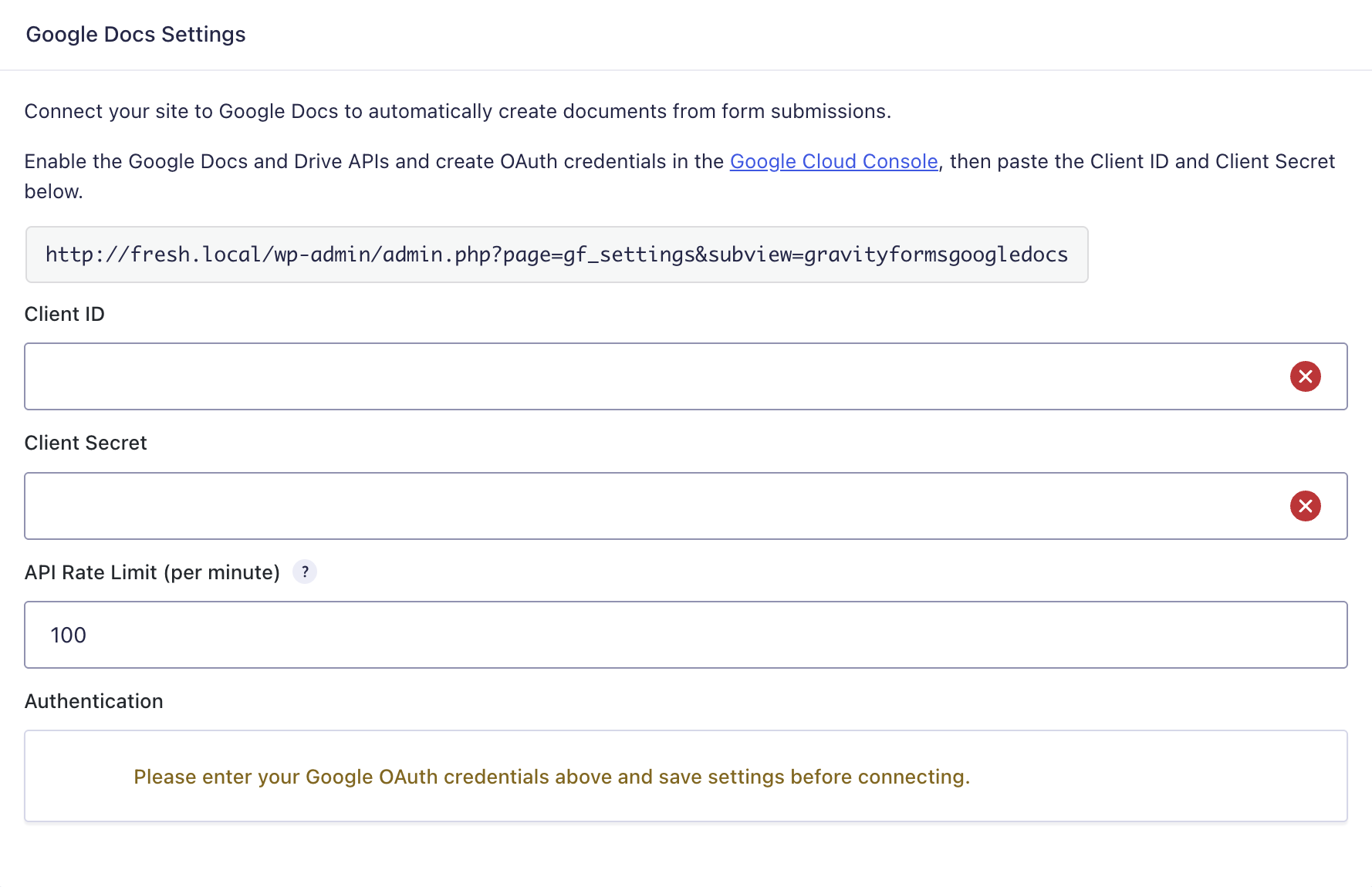
Step 5: Connect with Google
- Go to Forms → Settings → Google Docs.
- Make sure all API keys have been entered and click Update Settings
- Click Connect with Google
- Complete the onscreen authentication steps
- When redirected back to the settings page, you should see:
Successfully connected to Google Docs.
Account: [email protected]
Step 6: Configuring Feeds
Configuration is feed-based (standard Gravity Forms Feed Add-On pattern):
- Open the form you want to connect: Forms → [Your Form] → Settings → Google Docs.
- Click Add New to create a feed.
- Enter a Feed Name (e.g.
Contact Form Doc). - Configure:
- What to create (Google Doc, template-based doc, folder placement, naming, etc.)
- Field mapping (entry fields → document content/variables)
- Conditional logic (optional)
- Timing/trigger (on submission, on update, manual, etc.)
Using the Add-On
Creating Google Docs from form submissions
- Submit an entry through your Gravity Form.
- Confirm the add-on created/updated the corresponding Google Doc.
- Review the entry notes (if the add-on records the created document link or status).
Managing and auditing
- Check the form’s feed settings if a doc isn’t created
- Review any entry notes/metadata written by the add-on
- Use Gravity Forms logs for detailed API/auth troubleshooting
Field Mapping
Common mapping patterns
Depending on how the add-on works, you may be able to:
- Insert entry values into a Google Doc template (placeholders/merge tags)
- Set the document title using entry fields (e.g., “Proposal – {Name} – {Date}”)
- Choose destination Drive folder per feed (static or dynamic)
Tips
- Use consistent placeholder naming in templates
- Test with a single entry first before enabling the feed broadly
Merge tags for confirmations and notifications
Use these merge tags in confirmations and notifications:
| Merge tag | Description |
|---|---|
{google_docs:document_url} | URL of the created Google Doc |
{google_docs:document_id} | ID of the created Google Doc |
Both tags appear in the merge tag picker on confirmation and notification editors only (for forms that have a Google Docs feed).
Example confirmation message:
Thank you! Your submission has been saved as a Google Doc:
<a href="{google_docs:document_url}">View your document</a>
If no document was created (feed failed, was skipped by conditional logic, or has not finished processing), the tags resolve to an empty string.
Logging & Troubleshooting
Quick checks
- Confirm your site meets WordPress 6.0+, PHP 7.4+, Gravity Forms 2.7+
- Confirm Google authentication is complete and tokens/credentials are valid
- Confirm the authenticated Google identity has permission to create files in the target Drive/folder
If document creation fails
- Check Forms → Settings → Logging and enable logging for the Google Docs add-on (if available)
- Look for common causes:
- Invalid/expired OAuth token
- Missing API scopes
- Drive folder permission errors
- Template/document ID not found
- Google API quota limits
REST/API or server issues (if applicable)
- Verify outbound requests to Google APIs are not blocked by a firewall/WAF
- Verify your host supports required TLS/cURL settings
- Temporarily disable security plugins that block WP REST requests or external HTTP calls