

Overview
This integration is designed to simplify subscriber collection for teams using Mailjet as their email marketing platform. Once configured, every qualifying form submission can create or update a contact and subscribe them to a selected Mailjet list.
Key Features
- 🔁 Automatic List Subscription: Automatically add form submission email addresses to a Mailjet list.
- 🧠 Smart Field Mapping: Map Gravity Forms fields to Mailjet contact fields like email address and name.
- 🚀 Seamless Setup: Authenticate with Mailjet using your API Key and API Secret directly from the Gravity Forms settings area.
- 🧩 Modular Integration: Use conditional logic to control which form entries are sent to Mailjet.
- ⚙️ Powered by the Mailjet API: Built on the Mailjet REST API for reliable and secure connectivity.
How It Works
- Install and activate the add-on
- Connect your Mailjet account using your API Key and API Secret
- Create a feed within Gravity Forms and choose the Mailjet list you want to use
- Map your form fields to Mailjet contact fields
- Set conditions for when submissions should be sent
- Let automation handle the rest
Please log in to access this content. Log in
Requirements
- Gravity Forms 2.5+
- Drip account with access to API keys
- WordPress 5.7+
Changelog
0.1.1-alpha.1
2026-04-20
- Initial release.
Documentation
Mailjet Documentation
The Gravity Forms Drip Add-On connects your Gravity Forms to Drip so you can automatically create or update subscribers in your Drip account whenever a form is submitted.
Key Features
- Connects Gravity Forms to Mailjet using the Mailjet REST API
- Create or retrieve Mailjet contacts automatically from form submissions
- Subscribe contacts to a selected Mailjet mailing list
- Map Gravity Forms fields to Mailjet contact fields
- Create multiple Mailjet feeds per form
- Use Conditional Logic to control when a contact is sent to Mailjet
- Supports delayed feed processing for payment-based forms
- Built-in logging support through the Gravity Forms logging system
- Validates Mailjet API credentials before feeds can be created
Requirements
- WordPress
- PHP
- Gravity Forms 2.4+
- A Mailjet account
- A Mailjet API Key and API Secret
Installation
- Install the plugin on your site. If installing manually, upload it to
/wp-content/plugins/. - Activate the plugin from the WordPress Plugins screen.
- In WordPress, go to Forms → Settings → Mailjet to configure your Mailjet connection.
Setup: Connecting to Mailjet
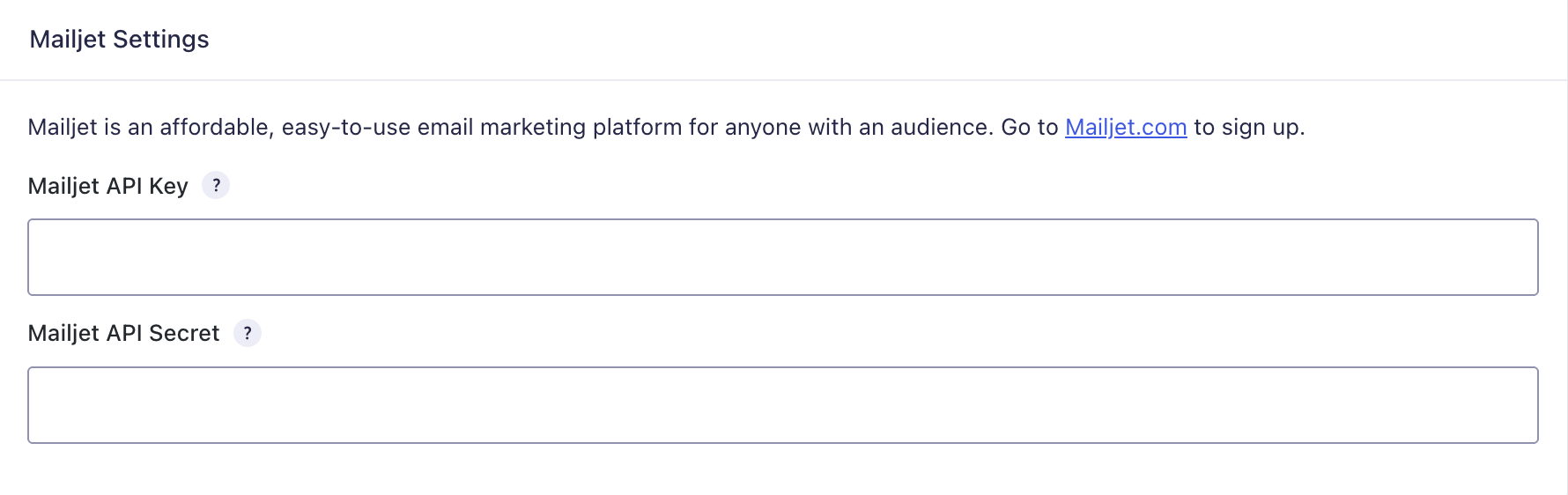
To connect the add-on, you’ll need your Mailjet API Key and API Secret.
Find your Mailjet API Key and API Secret
- Log in to your Mailjet account.
- Go to your Mailjet API credential settings.
- Copy your API Key.
- Copy your API Secret.
Enter your credentials in Gravity Forms
- Go to Forms → Settings → Mailjet.
- Enter your Mailjet API Key.
- Enter your Mailjet API Secret.
- Save the settings.
The add-on validates your credentials by attempting to retrieve your Mailjet lists. If the credentials are invalid, feed creation will be unavailable until the connection is fixed.
Using the Add-On: Creating a Feed
Feeds control what happens when a form is submitted, including which Mailjet list a contact should be added to and which form fields should be sent.
- Go to Forms → (choose a form) → Settings → Mailjet.
- Click Add New to create a new feed.
- Configure the feed options:
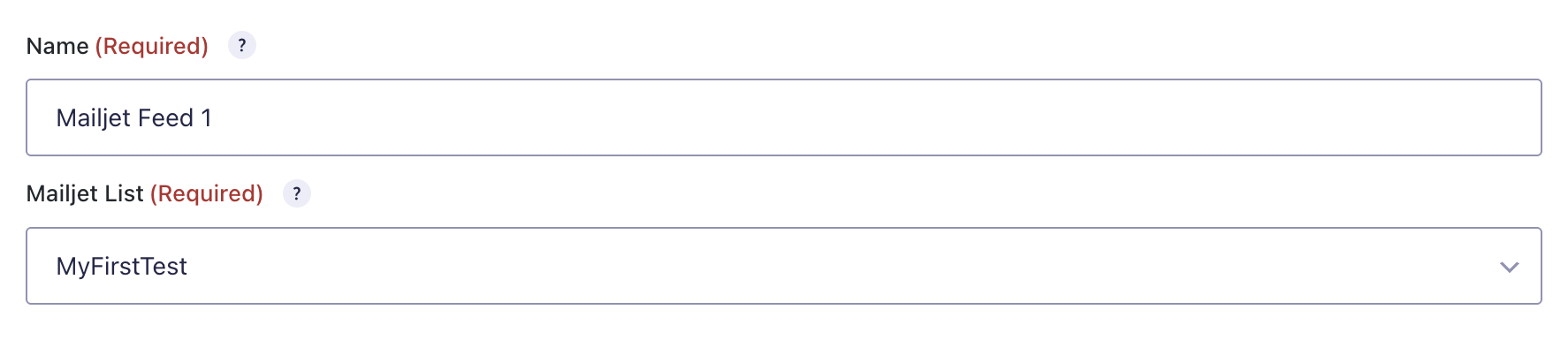
Feed Name
Enter an internal name to help you identify the feed later.
Mailjet List
Choose the Mailjet list that submitted contacts should be added to.
Map Fields
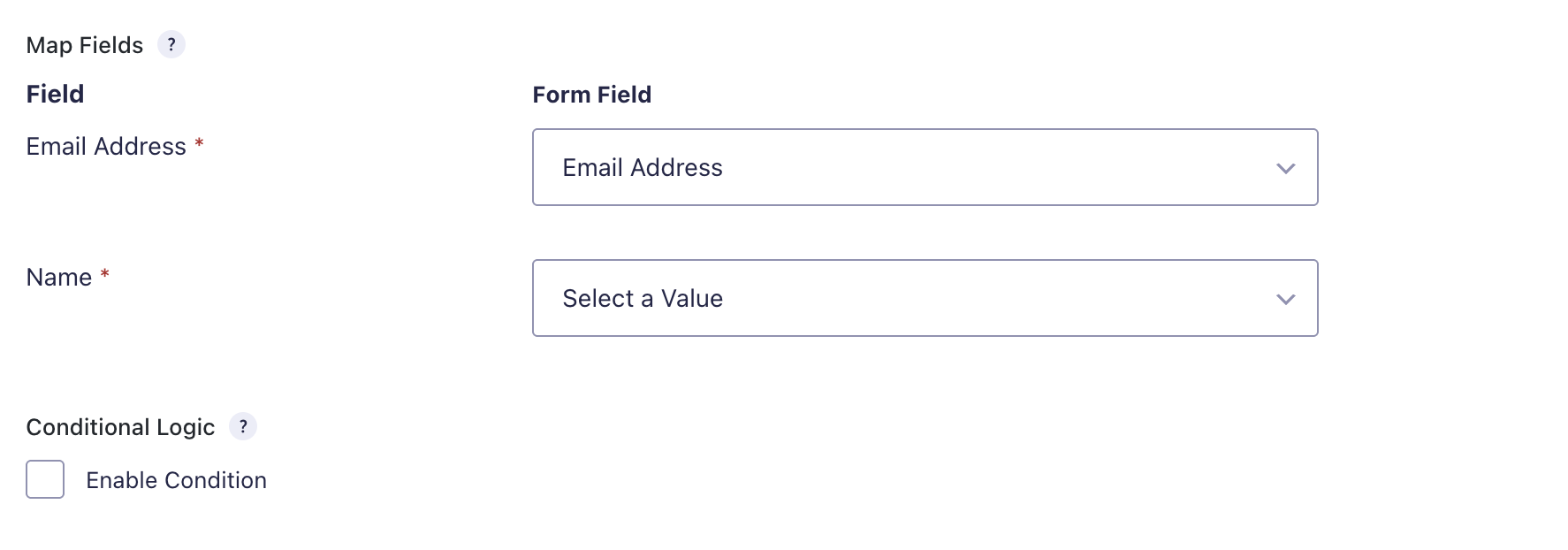
Map Gravity Forms fields to the Mailjet fields used by the add-on.
Conditional Logic
Optionally enable conditional logic so the feed only runs when specific conditions are met.
- Save the feed.
You can create multiple feeds per form if you want to send contacts to different Mailjet lists or apply different logic depending on the submission.
Field Mapping
Required mapping
The following field is required:
- Email Address — must be mapped to a Gravity Forms field containing a valid email address
Available mapped fields
This add-on currently supports mapping the following Mailjet fields:
- Email Address
- Name
If the submitted email address is missing or invalid, the feed will not process successfully.
Conditional Logic
Conditional logic lets you send contacts to Mailjet only when specific form conditions are met.
Examples include:
- Only subscribe users who checked an “Email me updates” checkbox
- Only send contacts to Mailjet after a specific product or option is selected
- Route different form submissions through different Mailjet feeds based on form input
When conditional logic is disabled, all qualifying submissions are sent to Mailjet.
Payment-Delayed Processing
This add-on supports delayed feed processing for payment-based forms.
If enabled, contacts can be subscribed to Mailjet only after payment is received. This is useful when you only want to add confirmed customers or paid registrants to a Mailjet list.
How It Works
When a form submission matches a Mailjet feed:
- The add-on reads the configured field mappings.
- It validates the submitted email address.
- It initializes the Mailjet API using the saved API credentials.
- It creates the contact in Mailjet, or retrieves the existing contact if it already exists.
- It subscribes the contact to the selected Mailjet list.
- It records notes and log entries based on the result.
If the selected Mailjet list uses double opt-in, the add-on adds an entry note indicating that the user has been sent a notification to subscribe. Otherwise, it notes that the user has been added to the Mailjet list.
Logging & Troubleshooting
If something doesn’t appear in Mailjet as expected:
- Enable Gravity Forms logging and review the Mailjet add-on log for API requests and errors
- Confirm the Mailjet API Key and API Secret are correct
- Make sure your feed is active
- Verify the selected Mailjet list still exists and is accessible through the Mailjet API
- Check that the Email Address field mapping points to the correct form field
- Confirm the submitted email address is valid
- Review any Conditional Logic settings to make sure the submission qualifies
- If using delayed payment support, make sure payment was completed successfully before expecting the contact to be sent
Common failure cases include invalid API credentials, missing or invalid email addresses, unavailable Mailjet lists, or Mailjet API request failures.
Mailjet API
This add-on uses the Mailjet REST API v3.
Relevant Mailjet API base URL:
https://api.mailjet.com/v3/REST
Common endpoints used by the add-on include:
contactslistcontactslist/{list_id}contactcontact/{email}contact/{contact_id}/managecontactslists
For Mailjet API reference, see:
- https://dev.mailjet.com/email/reference/contacts/
- https://www.mailjet.com/
Notes
- This is a feed-based Gravity Forms add-on built on
GFFeedAddOn - The plugin uses the singleton pattern for the main add-on class
- The plugin uses the WordPress HTTP API for Mailjet requests
- Feed creation is gated behind successful Mailjet API credential validation
- The plugin is written entirely in PHP