

Overview
The Gravity Forms Feedback Add-On transforms your Gravity Forms entries into a polished, public-facing idea board—complete with voting, filtering, sorting, search, and comments—so you can collect feedback and prioritize what to build next directly on your WordPress site.
Built for teams who want a lightweight feature or roadmap-style workflow without leaving WordPress, this add-on lets visitors submit ideas through forms on your site and then engage with them on one or more responsive, card-based boards. You can manage statuses from the admin, keep conversations in one place, and use real user votes to guide decisions.
Key Features
- Voteable Idea Boards: Turn form submissions into cards with vote counts so your community can prioritize what matters.
- Fast, AJAX-Powered Interactions: Smooth voting and browsing with no page reloads.
- Search + Filters + Sorting: Help users find ideas quickly with sidebar search, status/topic filters, and sorting (Trending, Latest, Most Votes, Least Votes).
- Comments on Individual Ideas: Let users discuss and refine suggestions on dedicated idea detail pages.
- Statuses, Badges, and Topics: Display status badges and topic tags to keep the board organized and transparent.
- Admin-Friendly Management: Update idea statuses from the Gravity Forms entry list for an efficient moderation workflow.
- REST API-Driven Frontend: A modern, API-backed interface for board actions and frontend updates.
How It Works
- Install and activate the add-on.
- Go to Forms → Settings → Ideas and configure your form fields for the board.
- Create a form using the add-on fields to collect ideas.
- Configure a feed mapping submission data to feedback entries (title, description, category/topics, etc.).
- Publish an idea board to any page by adding and customizing the
[gf_feedback]shortcode. - Let users submit ideas, vote, filter, and comment—while you manage progress with statuses in the admin.
Please log in to access this content. Log in
Requirements
- WordPress 6.0+
- PHP 7.4+
- Gravity Forms 2.7+
Changelog
0.2.0-alpha.6
- Added: Add Idea control on the Feedback management board that opens a dialog to submit directly to any configured Feedback form, with a form picker when more than one form is enabled.
- View more
0.2.0-alpha.5
- Added: Management-board sorting by recency, votes, comments, support, and activity, plus remembered controls for showing card metadata and activity.
- View more
0.2.0-alpha.4
- Added:
gform_feedback_board_ideasand property-specificgform_feedback_board_filter_{$property}_choicesfilters for customizing public board ideas and sidebar choices. - View more
Documentation
Feedback Documentation
Gravity Forms Feedback Add-On turns your Gravity Forms feature request form into a beautiful, public-facing idea board — like ProductBoard or Frill.co, built right into WordPress.
Key Features
- Transforms Gravity Forms entries into a public-facing, voteable idea board
- Card-based idea listing with vote counts, status badges, and topic tags
- AJAX-powered voting (no page reloads)
- Sidebar with search, status filters, and topic filters
- Sort by Trending, Latest, Most Votes, or Least Votes
- Single idea detail view with comments
- Admin status management from a dedicated Feedback page
- Full REST API for frontend interactions
Requirements
- WordPress 6.0+
- PHP 7.4+
- Gravity Forms 2.7+
Installation
- Upload the
gravityformsfeedbackplugin folder to/wp-content/plugins/(or install via Plugins → Add New → Upload Plugin). - Activate Gravity Forms Feedback Add-On from the WordPress Plugins screen.
- Go to Forms → Settings → Feedback to configure Board Settings, Voting Settings, Board Filters, Choice Settings, and Custom Properties.
- Create and configure a form with necessary fields and a feed to collect ideas.
- Create or edit a WordPress page and add the
[gf_feedback]shortcode to publish the idea board.
Setting Up the Feedback Add-On
This add-on turns a Gravity Forms “idea” form into a frontend board. Configuration is done in Forms → Settings → Feedback, where you connect the add-on to your form and map fields used to display ideas.
Typical items you’ll configure include:
- Add-on settings determine defaults voting, commenting, and fields.
- Field mapping for idea data (title, description, category/topics, status, etc.)
- Idea board display via the shortcode (and optional shortcode defaults)
Configuring the Add-On Settings
Board Settings
These settings cover general defaults for the add-on including a primary board page, default sort, configuration for moderation and commenting, and a primary page at which you’ll be receiving feedback.
Voting Settings
Configure who is allowed to vote, how votes will be tracked, and whether users are allowed to remove their votes.
Board Filters
Choose which filters appear in the sidebar on your feedback board. Toggle filters on or off, set custom display labels, and drag to reorder. Visible filters and filter order can be overridden per-instance by setting the shortcode parameter filters.
Choice Settings
Define the available choices for feedback properties. Add one choice per line using the format:
Label|choice-value|identifier
Where identifier is an image URL or hex color (e.g. #FF5733).
These populate choices available in the custom Feedback fields that can be added to forms and drive sidebar filter display.
Customer Properties
Create custom filterable properties beyond the built-in ones. Each property becomes available as a sidebar filter and a form field type for mapping from within the feed.
Adding Form Fields
Five new fields will be made available in your form editor under the Advanced Fields section. Target, Type, Importance, Source, and Target will present choices that have been defined from within the add-on settings. This ensures choices are consistent across any forms from which you might gather ideas.
Creating a Feedback Feed
Submissions can be captured to the idea board by creating a feed at Form → Settings → Feedback.
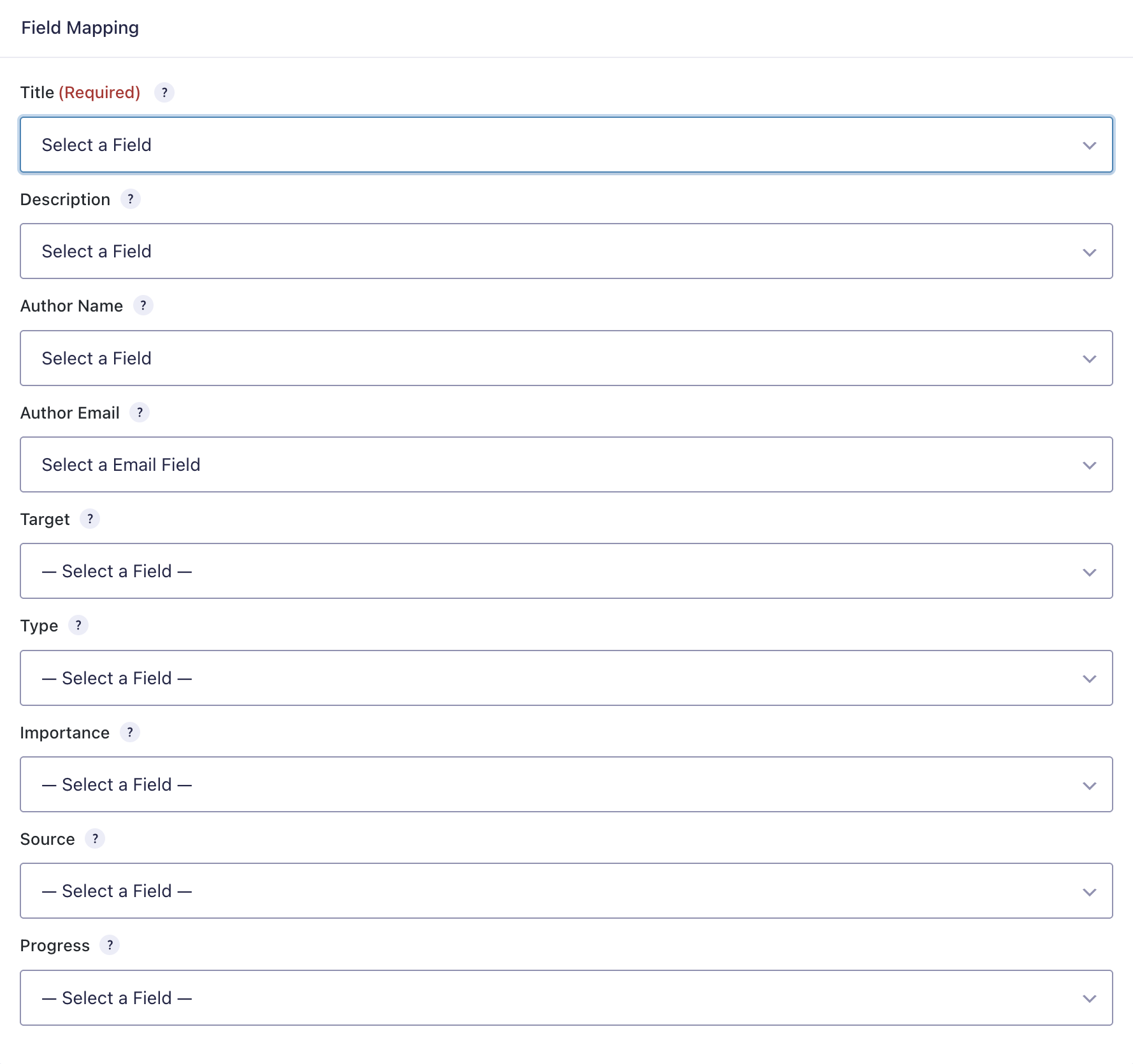
After naming your feed, map submission values to the idea’s title, description, author name, author email, target, type, importance, source, progress, and any custom properties that have been defined in add-on settings.
Optionally, enable conditional logic for the feed.
Using the Shortcode to Publish a Board
To display a feedback board on the frontend:
- Add the
[gf_feedback]shortcode to any WordPress page. - Visit the page on the frontend to browse ideas, vote, filter, and search.
Optionally, you can customize your board using the following parameters. This gives you the flexibility to manage multiple boards sourced from different forms. This can be useful to present a board per product.
Shortcode Parameters
Optional attributes include:
form_id– set the source form (if excluded, ideas are pulled from all forms)per_page– ideas per page (default: 15)sort– default sort (trending,latest,most_votes,least_votes)filters– available and ordered sidebar filters (target,type,importance,source,progress, plus custom properties)meta– available and structured list item identifiers (target,type,importance,source,progress, plus custom properties)accent– hex color for styling the board
Voting, Filtering, Sorting, and Search
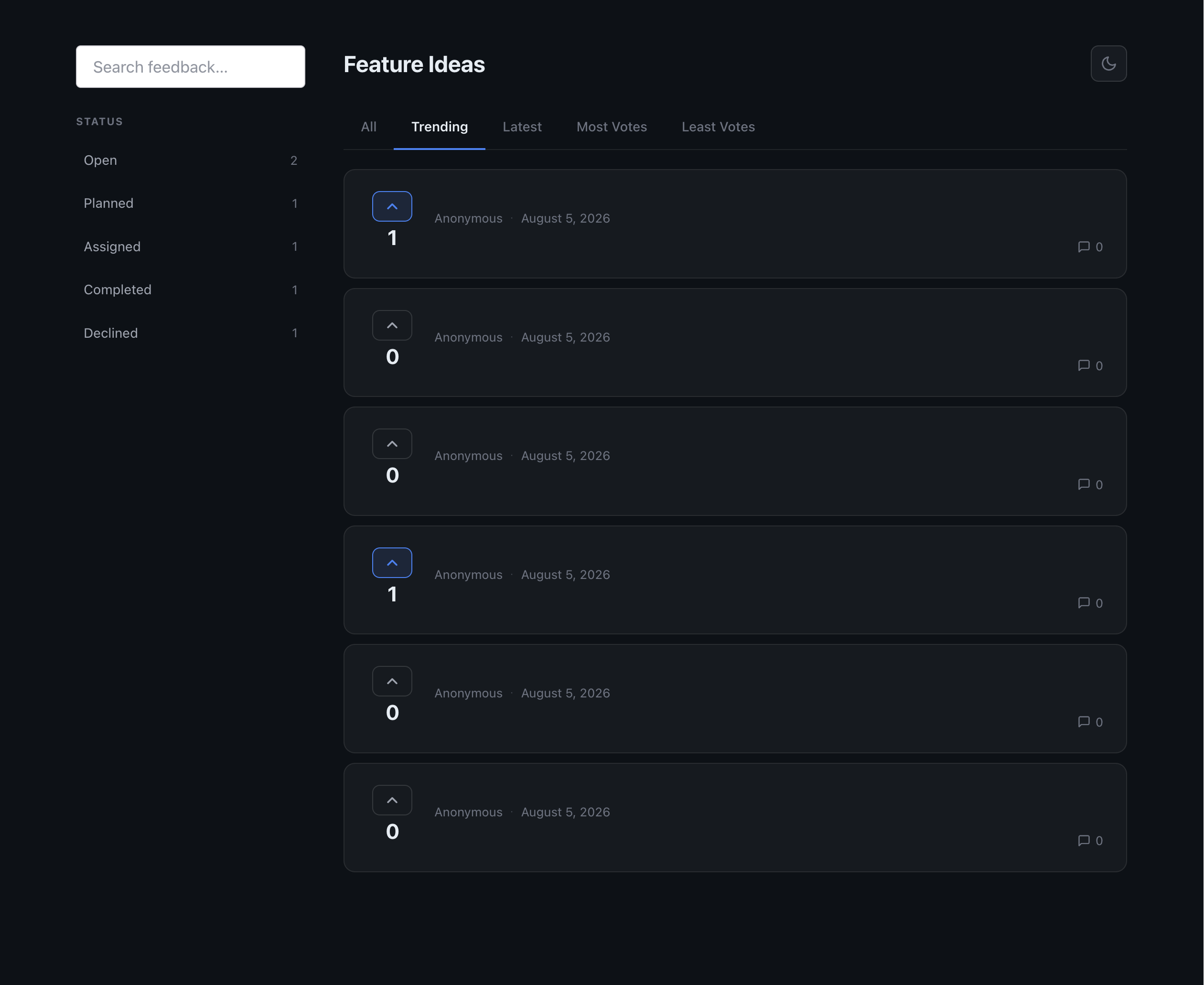
The board includes a sidebar for filtering and search, and supports multiple sort modes (Trending, Latest, Most Votes, Least Votes). Voting is AJAX-powered so votes can be cast without reloading the page.
Logging & Troubleshooting
If the board isn’t behaving as expected:
- Confirm your site meets WP 6.0+ / PHP 7.4+ / Gravity Forms 2.7+.
- Re-check your configuration in Forms → Settings → Ideas, especially form selection and field mapping.
- Confirm the page contains the
[gf_feedback]shortcode and that caching isn’t serving an outdated version of the page. - If interactive actions (vote/filter/search) fail, verify the WordPress REST API is accessible and not blocked by a security plugin/WAF.