

Overview
The Gravity Forms n8n Add-On makes it easy to send Gravity Forms submissions to n8n workflows without custom code. Connect your forms to n8n webhooks, send entry data automatically, apply conditional logic, and optionally map response data back to your entries.
Key Features
- 🔗 Connect Gravity Forms to n8n: Send form submissions to n8n Cloud or self-hosted n8n workflows using webhook feeds.
- ⚙️ Flexible Feed Configuration: Create one or more feeds per form and control exactly when submissions are sent.
- 🧠 Workflow Picker or Manual Setup: Paste a webhook URL manually or connect your n8n instance to choose workflows from the admin.
- 🚦 Production and Test Webhook Support: Use live production URLs or test webhook URLs while building workflows.
- 📦 Flexible Payload Options: Send data as JSON or form-encoded payloads, including full entry data or mapped fields only.
- 🔐 Multiple Authentication Methods: Support Header Auth, Basic Auth, HMAC signing, and custom headers.
- 🧪 Built-In Send Test Tool: Test webhook delivery from feed settings before going live.
- 🔁 Reliable Delivery and Retries: Automatically retry failed deliveries with exponential backoff.
- 📋 Delivery Tracking and Resend Tools: View delivery status on entries and resend individual or bulk submissions.
- ↩️ Response Mapping: Map values from an n8n webhook response back into Gravity Forms entry fields or custom entry meta.
How It Works
- Install and activate the add-on.
- Go to Forms > Settings > n8n to optionally connect your n8n instance.
- Open a Gravity Form and go to Settings > n8n.
- Create a new feed and add a webhook URL or select a workflow.
- Configure payload, authentication, and conditional logic settings.
- Save the feed and submit the form.
- The submission is sent to n8n automatically.
Please log in to access this content. Log in
Requirements
- WordPress 6.5+
- PHP 7.4+
- Gravity Forms 2.9.24+
- n8n 1.x
Changelog
0.1.0-alpha.1
Initial release.
- Feed-based delivery of Gravity Forms submissions to n8n webhooks (n8n Cloud and self-hosted).
- Asynchronous processing so webhook latency never blocks the submission redirect.
- JSON (default) and form-encoded payloads with a stable, n8n-friendly shape.
- View more
Documentation
n8n Add-On Documentation
The Gravity Forms n8n Add-On lets you send Gravity Forms submissions to n8n workflows using webhook feeds.
Key Features
- Send Gravity Forms submissions to n8n webhook workflows
- Support for n8n Cloud and self-hosted n8n
- Create one or more n8n feeds per form
- Paste a webhook URL manually or pick a workflow using the n8n API
- Choose Production or Test webhook URLs
- Send payloads as JSON or form-encoded data
- Map specific form fields or send the default full payload
- Support conditional logic per feed
- Retry failed deliveries with exponential backoff
- View delivery status on entries
- Resend deliveries from the entry screen or in bulk
- Send test requests from feed settings
- Support Header Auth, Basic Auth, HMAC signing, and custom headers
- Optionally map JSON response values from n8n back to entry fields or entry meta
Requirements
- WordPress 6.5+
- PHP 7.4+
- Gravity Forms 2.9.24+
- n8n 1.x
Optional Requirements
- n8n API key for workflow discovery in the admin
- A webhook-enabled n8n workflow
- WP-Cron enabled for automatic retries of failed deliveries
Installation
- Upload the plugin to your
/wp-content/plugins/directory, or install it using your preferred deployment workflow. - Activate the plugin from the WordPress Plugins screen.
- In WordPress, go to Forms → Settings → n8n.
- Optionally enter your n8n Base URL and n8n API Key to enable workflow discovery.
Using the Add-On
The add-on works by attaching one or more n8n feeds to a Gravity Forms form.
- Go to Forms → select a form → Settings → n8n.
- Click Add New to create a feed.
- Enter a feed name.
- Configure the destination webhook.
- Choose payload and authentication settings.
- Optionally add conditional logic.
- Save the feed.
When the form is submitted, the add-on sends the entry data to the configured n8n webhook.
Global Plugin Settings
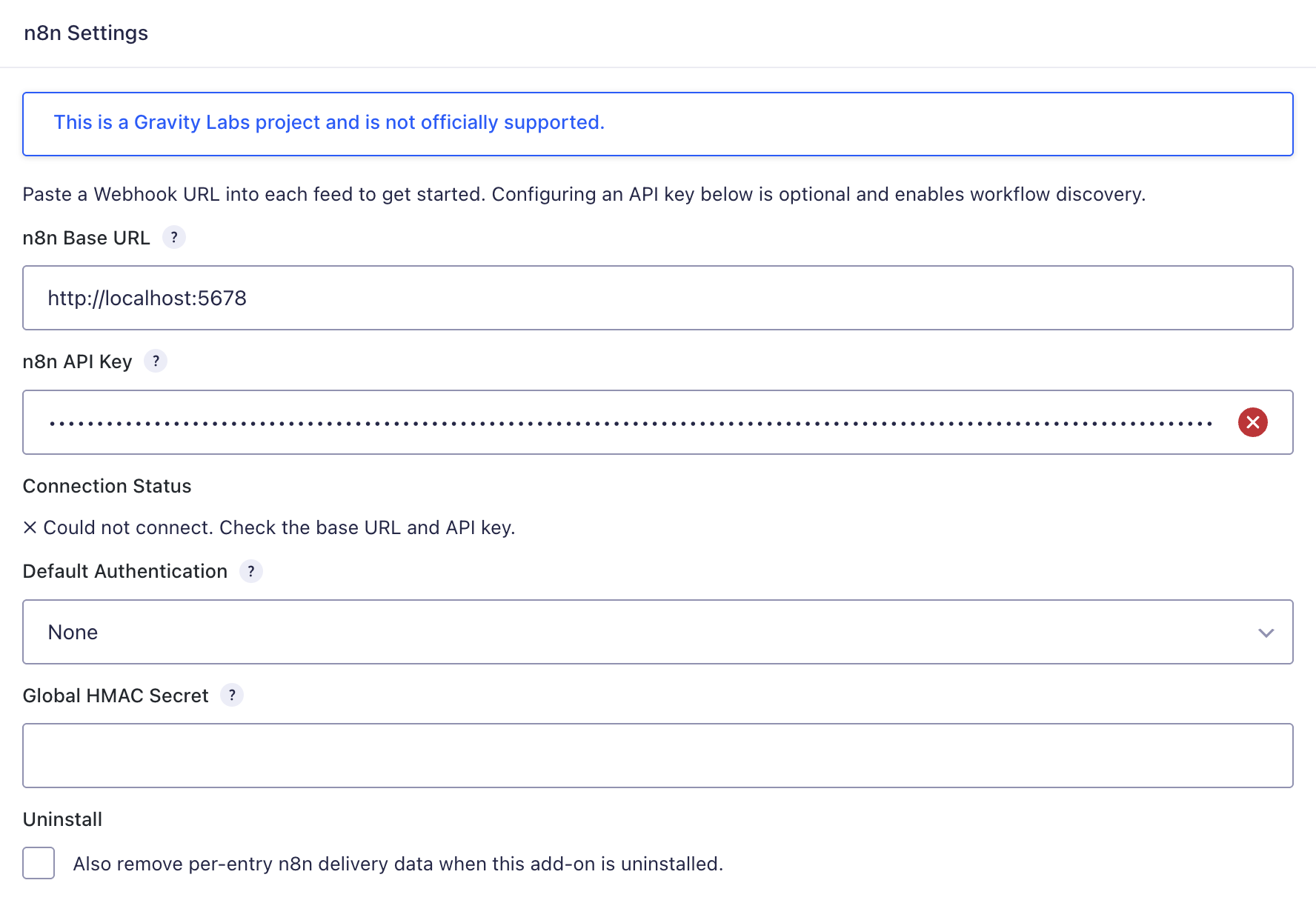
The plugin settings page is located at Forms → Settings → n8n.
Available settings include:
- n8n Base URL — your n8n Cloud or self-hosted base URL
- n8n API Key — optional, used for connection checks and workflow discovery
- Connection Status — confirms whether the plugin can connect to the n8n API
If no API key is configured, you can still use the add-on by pasting webhook URLs directly into feeds.
Feed Setup
Each form feed can be configured with:
- Name
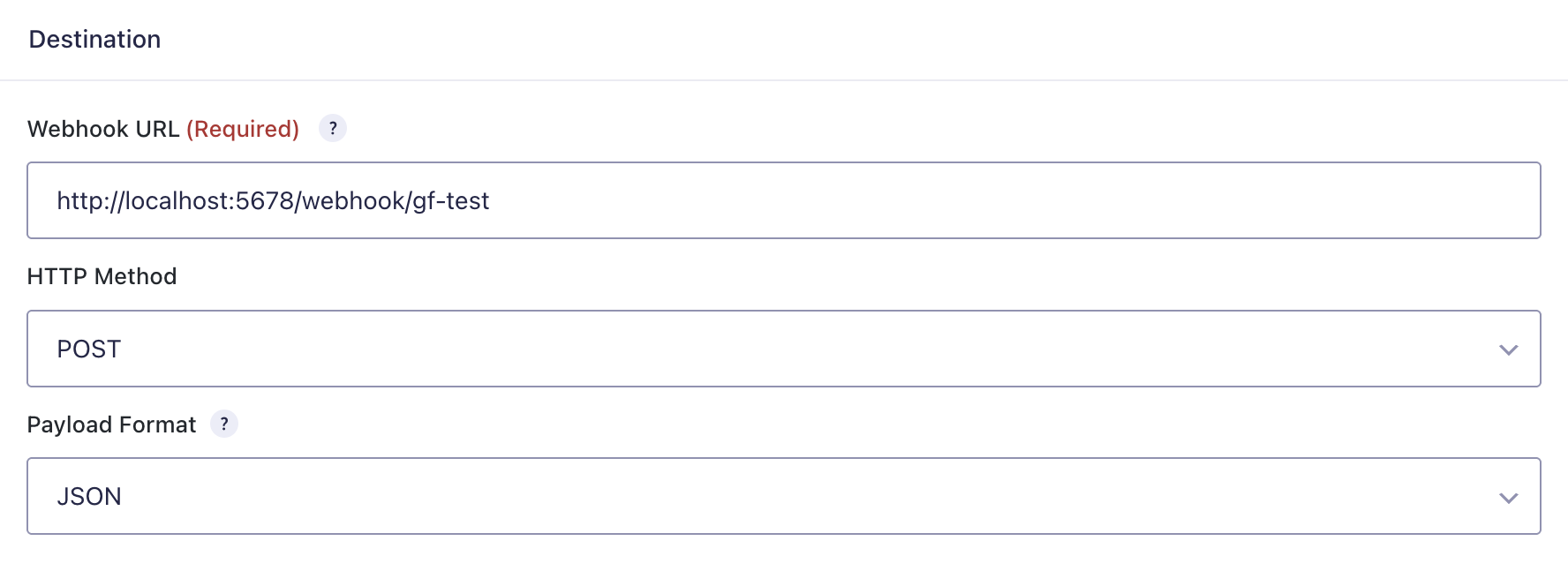
- Webhook URL
- HTTP Method
- Payload Format
- Conditional Logic
- Workflow selector when API access is configured
- URL Mode for Production or Test webhooks
- Send Test tool
If the n8n API is configured, the add-on can list workflows that contain a Webhook trigger node and auto-fill the webhook URL.
Webhook Modes
You can configure feeds in one of two ways:
Manual mode
- Paste the webhook URL from an n8n Webhook trigger node into the feed settings
Workflow picker mode
- Configure the n8n Base URL and API Key in plugin settings
- Select a workflow from the feed settings
- Choose either the Production or Test webhook URL
Test webhook URLs only work while the n8n editor is actively listening. Production URLs should be used for live forms.
Payload Format
The add-on supports two payload formats:
- JSON
- Form-encoded
JSON is the recommended format for n8n.
The default JSON payload can include:
formentryfieldsrawfilesmeta
Multi-select and checkbox values are sent as arrays.
What Gets Sent
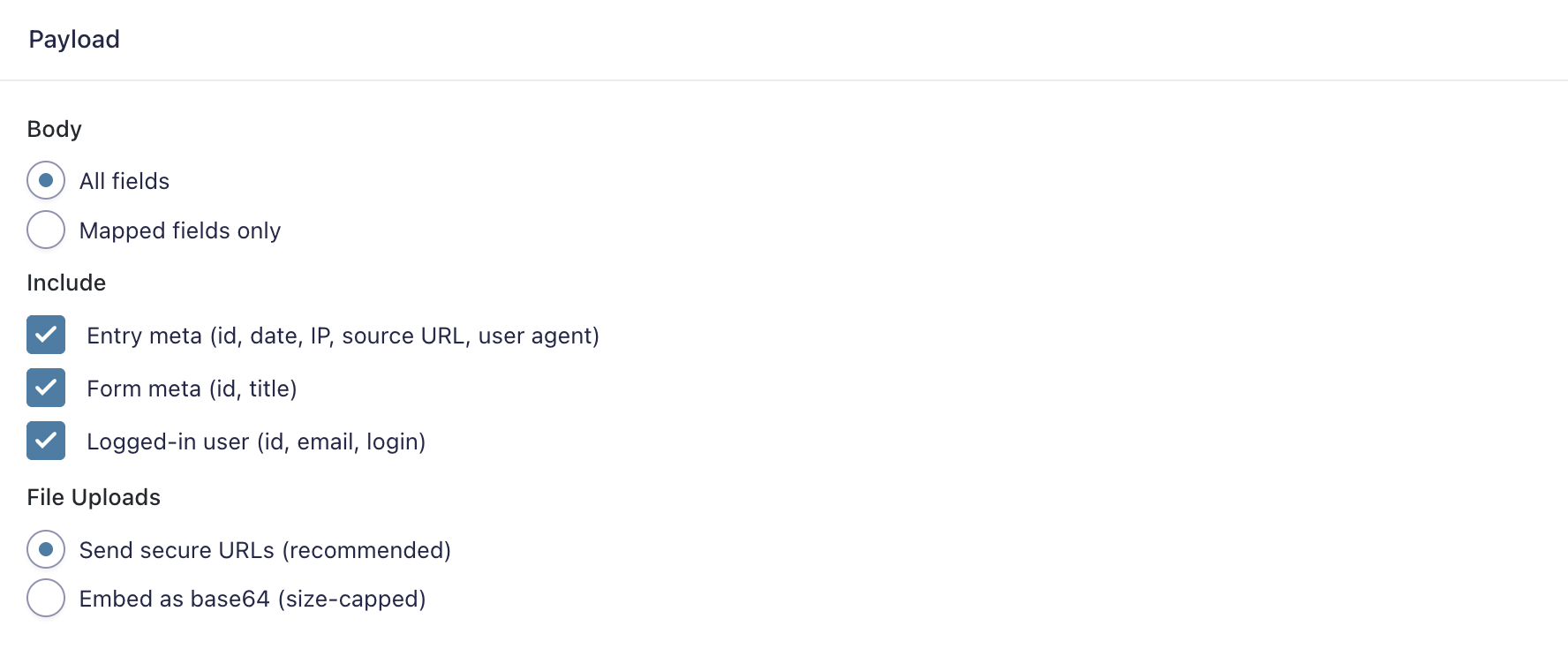
Depending on feed configuration, the payload can include:
- Form ID and title
- Entry ID and submission metadata
- Field values using field names or mapped keys
- Raw field values
- Uploaded file data
- Feed metadata such as feed ID, feed name, and plugin version
If configured, the add-on can send only mapped fields instead of the full field set.
Authentication Options
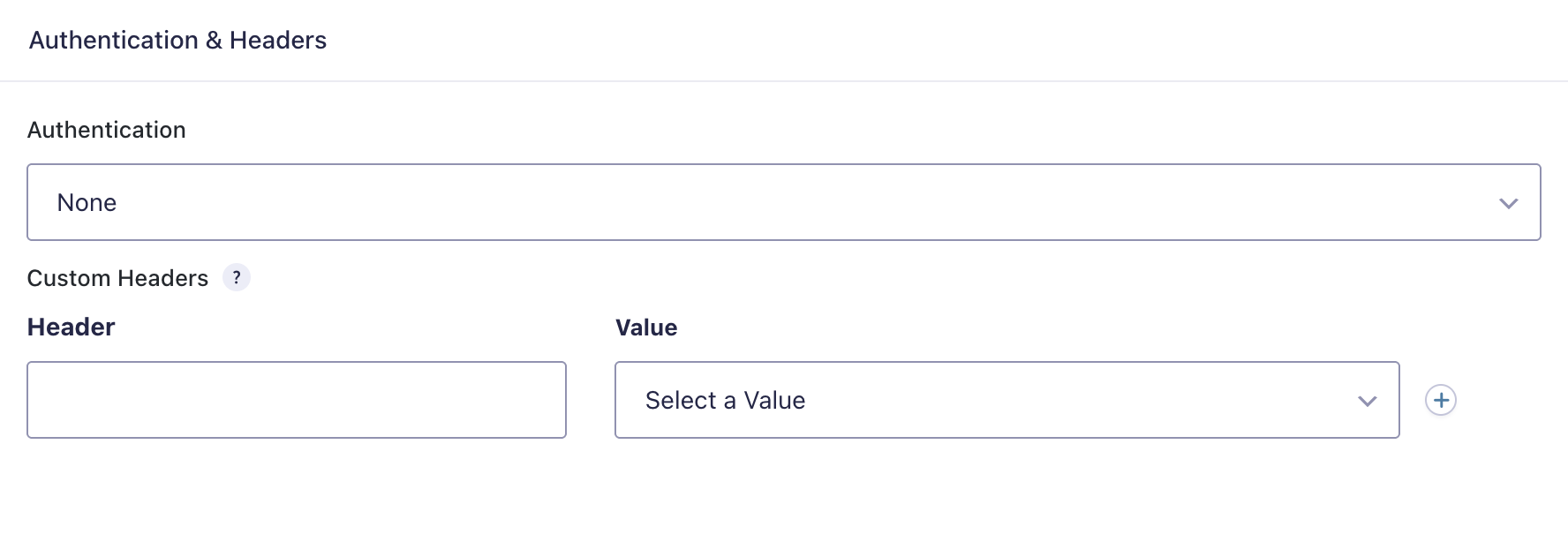
The add-on supports these authentication methods:
- None
- Header Auth
- Basic Auth
- HMAC Signature
It also supports custom headers, including headers built with merge tags.
For HMAC signing, the add-on sends a signature in the X-GF-Signature header.
Conditional Logic
Each feed can use Gravity Forms conditional logic.
This allows you to send an entry to n8n only when specific field conditions are met.
Send Test
Each feed includes a Send Test option.
This sends a sample payload to the configured webhook URL using either:
- the most recent form entry, or
- generated sample data when no entry is available
This is useful for validating webhook connectivity and checking the response from n8n before going live.
Delivery Status and Retries
The add-on tracks delivery status for each entry.
Possible delivery states include:
- Delivered
- Retrying
- Failed
If a delivery fails in a retryable way, the add-on can retry it automatically using WP-Cron with exponential backoff.
The add-on also stores delivery notes per attempt to help with troubleshooting.
Resending Deliveries
If needed, you can resend data to n8n after submission.
Resend options include:
- Resend from the single entry view
- Bulk Resend to n8n action from the entries list
This is useful when a webhook was temporarily unavailable or a workflow needed to be rerun.
Response Mapping
The add-on can optionally map values from a synchronous JSON response back into the Gravity Forms entry.
This is intended for workflows that use an n8n Respond to Webhook node.
You can map response keys to:
- Gravity Forms entry fields
- Custom entry meta values
If the response is not valid JSON, response mapping is skipped.
File Upload Handling
File uploads can be included in deliveries.
The add-on supports sending uploaded files as:
- secure file URLs by default
- size-capped base64 data when configured
Notes and Limitations
- Test webhook URLs only work while the n8n editor is actively listening
- Workflow discovery requires an n8n API key
- The n8n API may not be available on all n8n plans
- Response mapping only works with synchronous JSON webhook responses
- Automatic retries depend on WP-Cron running correctly
- Live forms should generally use Production webhook URLs rather than Test URLs
Troubleshooting
If a feed is not working as expected:
- Confirm Gravity Forms is installed and active
- Confirm the webhook URL is correct
- Use a Production webhook URL for live forms
- If using a Test webhook URL, make sure the n8n editor is actively listening
- Check the feed’s conditional logic settings
- Use Send Test to confirm the webhook can be reached
- Review entry delivery status and notes
- Confirm WP-Cron is working if retries are not happening
- If using workflow discovery, confirm the n8n Base URL and API Key are valid