

Overview
The Gravity Forms Notion Add-On helps teams turn form submissions into organized Notion content automatically. Once connected, qualifying submissions can create new Notion database rows, child pages, or workspace pages using data collected through Gravity Forms.
Use it to streamline intake workflows, centralize form submissions, and keep project trackers, lead databases, request logs, and internal documentation up to date without manual copying and pasting.
Key Features
- 🔁 Automatic Notion Updates: Automatically send Gravity Forms submissions to Notion as database rows or pages.
- 🧠 Smart Field Mapping: Map Gravity Forms fields to Notion database properties such as title, rich text, number, select, checkbox, email, phone, date, and more.
- 📝 Page Creation with Markdown: Create Notion pages with dynamic titles and markdown body content generated from form submission data.
- 🚀 Seamless OAuth Setup: Connect to Notion using a public OAuth flow directly from the Gravity Forms settings area.
- 🗂️ Flexible Destinations: Send entries to a Notion database, create child pages under a selected parent page, or create workspace-level pages when permissions allow.
- 🧩 Conditional Automation: Use Gravity Forms conditional logic to control exactly which submissions are sent to Notion.
- ⚙️ Powered by the Notion API: Built on the Notion REST API with OAuth token refresh, rate-limit handling, and asynchronous feed processing for reliable performance.
- 🔄 Schema Refreshing: Refresh Notion database properties from the feed settings screen so field mapping stays aligned with your workspace.
- 🔧 Workflow Ready: Includes Gravity Flow support, making it easy to add Notion actions into approval, review, or intake workflows.
How It Works
- Install and activate the add-on.
- Connect your Notion workspace from Forms → Settings → Notion.
- Create a Notion feed for the form you want to automate.
- Choose a destination: database row, child page, or workspace page.
- Map Gravity Forms fields to Notion properties or configure page title and markdown content.
- Set conditional logic rules for when submissions should be sent.
- Let the add-on automatically create organized Notion content from each qualifying form submission.
Please log in to access this content. Log in
Requirements
- WordPress 6.8+
- PHP 7.4+
- Gravity Forms 2.9.24+
- A Notion integration using public OAuth
- Access to the Notion workspace, database, or pages you want Gravity Forms to write to
Changelog
0.1.0-alpha.2
2026-08-19
- Fixed an issue where selecting Custom on the Notion property column in the database property map sent an invalid property name to Notion.
- Labs packaging: Labs plugin URI and Requires Plugins header, in-product Labs notice, uninstall option cleanup, translation template, and Code Quality CI (PHPCS, PHPUnit, PHPStan, Semgrep).
- View more
0.1.0-alpha.1
2026-06-15
- Added Notion OAuth integration for connecting workspaces via public OAuth flow.
- Added support for sending form submissions to Notion databases (property mapping with cached schema).
- View more
Documentation
Notion Add-On Documentation
The Gravity Forms Notion Add-On connects Gravity Forms to Notion so form submissions can automatically create content in a connected Notion workspace.
Key Features
- Connects Gravity Forms to Notion using Notion public OAuth.
- Sends form submissions to Notion through the Notion REST API.
- Creates Notion database rows from Gravity Forms entries.
- Maps Gravity Forms fields to Notion database properties.
- Supports Notion property types including title, rich text, number, select, multi-select, checkbox, URL, email, phone, date, status, and more.
- Creates child pages under a selected Notion parent page.
- Creates workspace-level pages when Notion permissions allow.
- Supports markdown body content for page destinations.
- Includes a database picker with live search.
- Caches Notion database schema for faster feed configuration.
- Provides schema refresh via AJAX.
- Includes a parent page picker with paginated search.
- Supports Conditional Logic for feed processing.
- Processes feeds asynchronously to reduce front-end submission impact.
- Handles Notion API rate limits with retry support for HTTP 429 responses.
- Integrates with Gravity Flow using a Notion feed step.
- Supports Gravity Forms logging and feed error handling.
- Includes developer filters for customizing feed processing and Notion payloads.
Requirements
- WordPress 6.8+
- PHP 7.4+
- Gravity Forms 2.9.24+
- A Notion integration using public OAuth
- Access to the Notion workspace, database, or pages you want Gravity Forms to write to
Installation
- Upload the
gravityformsnotionfolder to/wp-content/plugins/. - Activate the plugin from the WordPress Plugins screen.
- In WordPress, go to Forms → Settings → Notion.
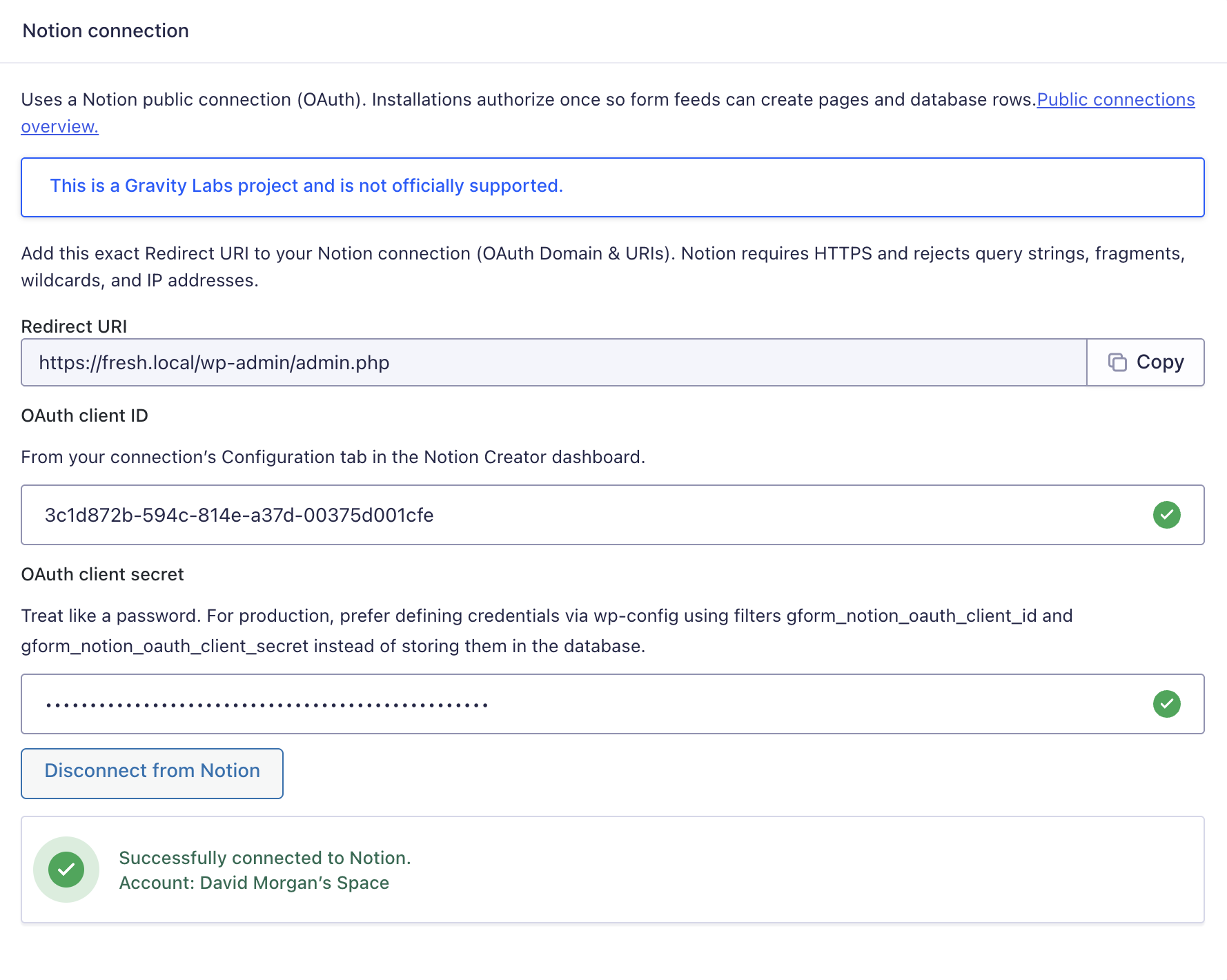
- Enter your Notion OAuth Client ID and Client Secret.
- Register the displayed Redirect URI in your Notion integration settings.
- Click Connect with Notion to authorize the connection.
Setup: Connecting to Notion
To connect the add-on, you need a Notion public OAuth integration.
Create or configure a Notion integration
- Go to Notion’s integrations page:https://www.notion.so/my-integrations
- Create or open your Notion integration.
- Confirm that the integration is configured for public OAuth.
- Copy the OAuth Client ID and Client Secret.
- In WordPress, go to Forms → Settings → Notion.
- Paste the Client ID and Client Secret.
- Copy the Redirect URI shown in the Gravity Forms Notion settings screen.
- Add that Redirect URI to your Notion integration settings.
- Save the integration settings in Notion.
- Return to WordPress and click Connect with Notion.
- Authorize the workspace when prompted.
After authorization, the add-on stores the OAuth connection and uses it when processing Notion feeds.
Using the Add-On: Creating a Feed
Feeds control what happens when a form is submitted.
Go to:
Forms → Choose a form → Settings → Notion
Then:
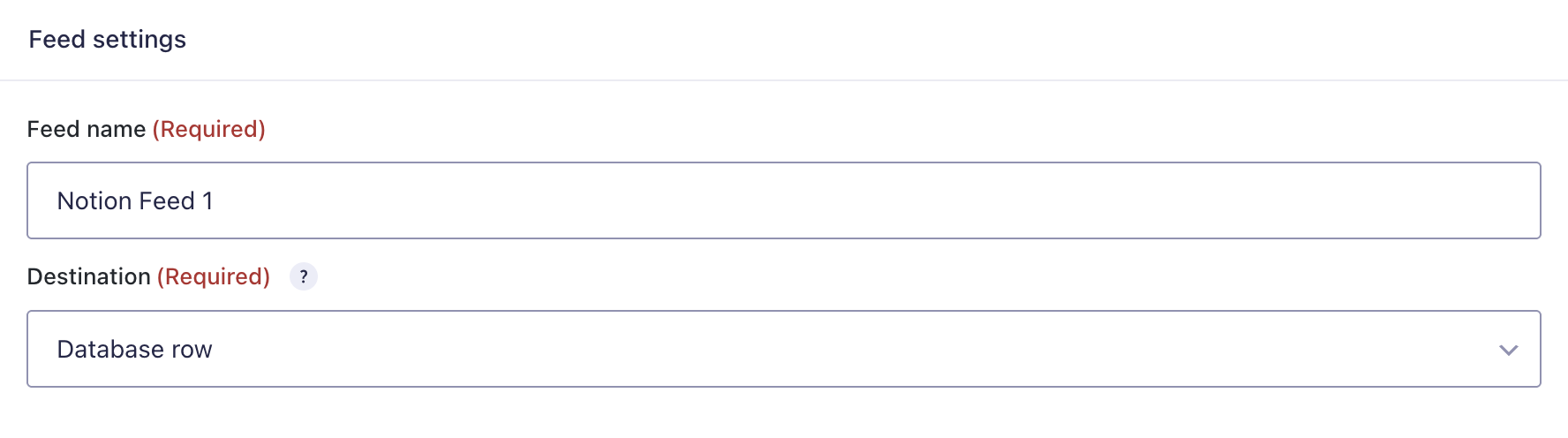
- Click Add New to create a new feed.
- Enter a Feed name.
- Choose a destination:
- Database row
- Child page
- Workspace page
- Configure the destination-specific settings.
- Optionally enable Conditional Logic.
- Save the feed.
You can create multiple Notion feeds per form if you want different submissions to create different database rows or pages.
Feed Destinations
Database Row
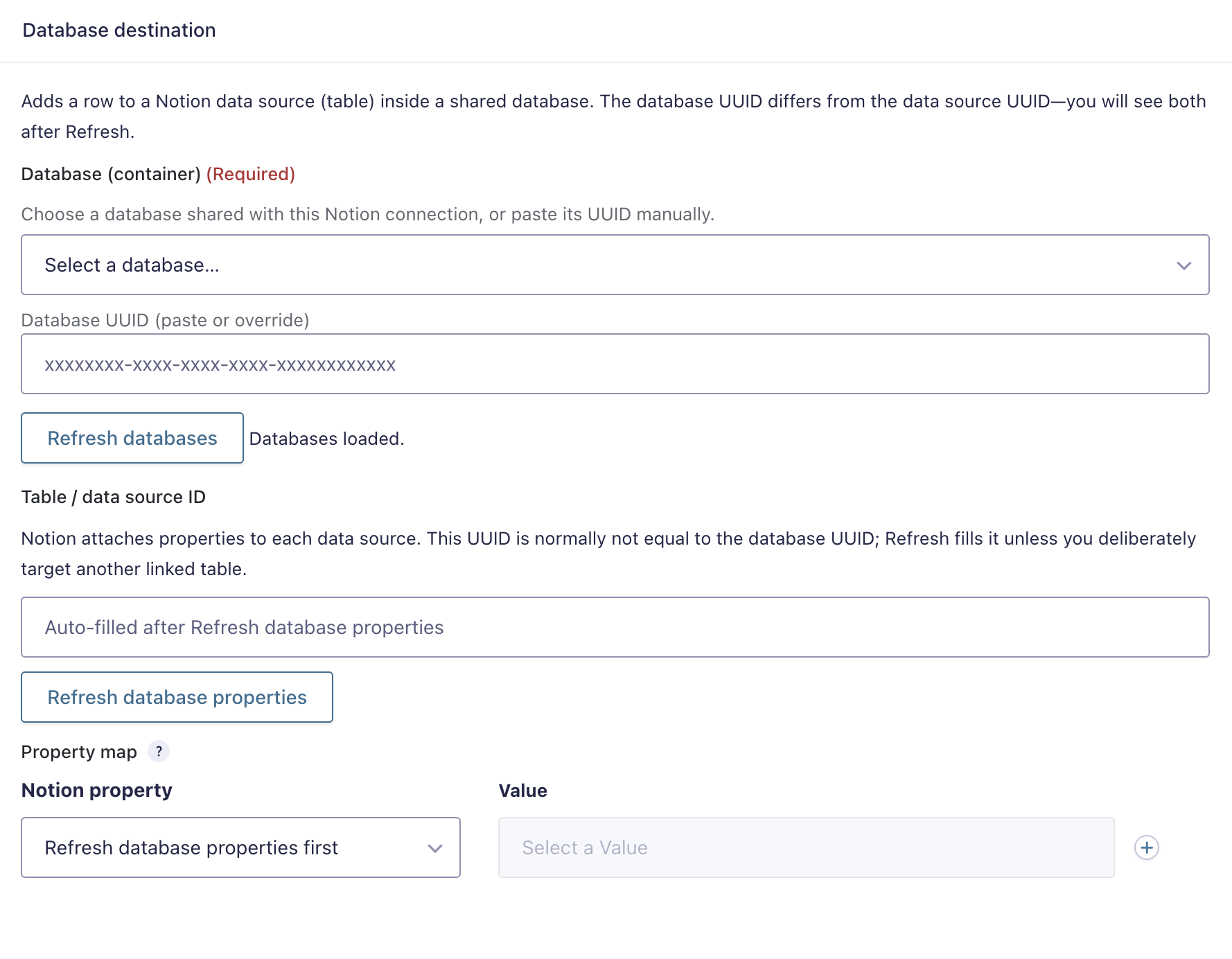
Use this destination to create a new row in a Notion database.
When configuring a database destination:
- Select or enter the Notion database.
- Refresh the schema.
- Select the appropriate data source if required.
- Map Gravity Forms fields to Notion database properties.
- Save the feed.
The add-on stores a cached copy of the Notion database schema so the mapping UI can load quickly. Use schema refresh if you add, remove, or rename Notion properties.
Child Page
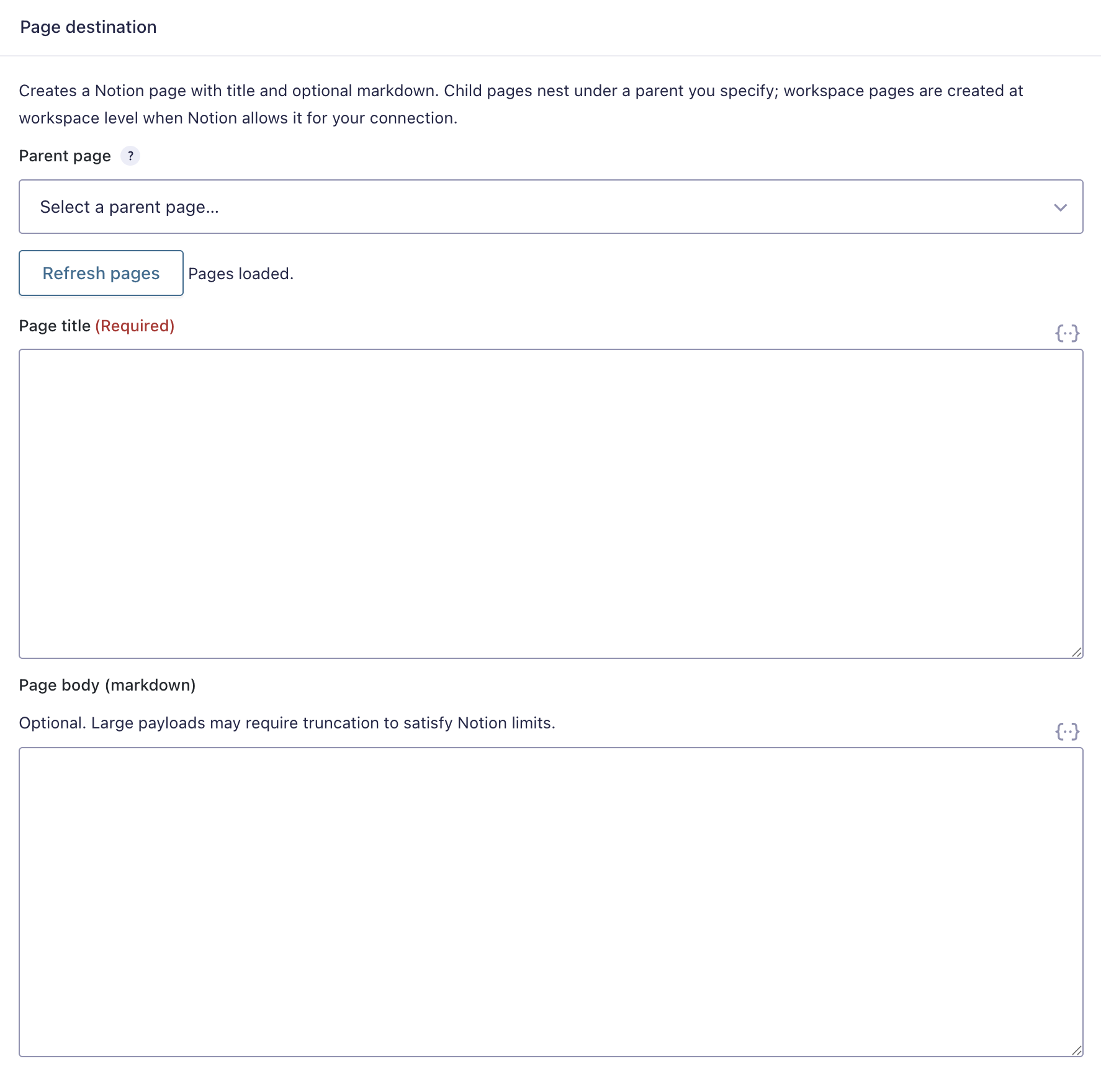
Use this destination to create a Notion page under a selected parent page.
When configuring a child page destination:
- Select the parent Notion page.
- Configure the page title.
- Optionally configure page body markdown.
- Use Gravity Forms merge tags to include submitted form data.
- Save the feed.
Page body content is submitted as markdown. Large payloads may need to be shortened to satisfy Notion limits.
Workspace Page
Use this destination to create a top-level page in the connected Notion workspace.
Workspace page creation depends on the permissions granted to the Notion integration.
When configuring a workspace page destination:
- Select Workspace page as the destination.
- Configure the page title.
- Optionally configure page body markdown.
- Use merge tags to include form submission data.
- Save the feed.
Field Mapping
Field mapping is used for Notion database row destinations.
The add-on retrieves the Notion database or data source schema and lets you map Gravity Forms fields to Notion properties.
Supported Notion property types include:
- Title
- Rich text
- Number
- Checkbox
- Select
- Multi-select
- Status
- URL
- Phone number
- Date
- People
- Files
- Relation
- Rollup
- Formula
- Unique ID
- Created by
- Created time
- Last edited by
- Last edited time
- Verification
Not all Notion property types are writable in every context. Read-only Notion properties may appear in schema data but cannot always be populated by form submissions.
Page Titles and Markdown Content
For page destinations, configure:
- Page title: Required.
- Page body (markdown): Optional.
Both fields support Gravity Forms merge tags, so submitted values can be included in the generated Notion page.
Example page title:
New Lead: {Name:1}
Example page body:
## Contact Details
Name: {Name:1}
Email: {Email:2}
Message: {Message:3}
Conditional Logic
Conditional logic lets you process a Notion feed only when specific form conditions are met.
Use it to create rules such as:
- Only create a Notion page when a checkbox is selected.
- Only add a database row when a lead source matches a specific value.
- Route different submissions to different Notion destinations.
- Create different feeds for different form choices.
To enable it:
- Edit the Notion feed.
- Open the Conditional logic section.
- Check Enable.
- Configure the rules.
- Save the feed.
Gravity Flow Integration
The add-on includes a Gravity Flow feed step for Notion.
Use the Notion step when you want a workflow to control when the Notion feed runs instead of processing immediately on form submission.
If a form has no Notion feeds configured, the workflow step will indicate that a feed should be added under:
Form Settings → Notion
Logging & Troubleshooting
If a submission does not appear in Notion as expected:
- Confirm the site is connected under Forms → Settings → Notion.
- Confirm the Notion OAuth Client ID and Client Secret are correct.
- Confirm the Redirect URI in Notion exactly matches the Redirect URI shown in WordPress.
- Make sure the connected Notion integration has access to the target workspace, database, or parent page.
- Confirm the feed is active.
- Confirm Conditional Logic rules match the submitted entry.
- For database destinations, refresh the schema after changing Notion database properties.
- Verify required Notion fields, especially title fields, are mapped correctly.
- Enable Gravity Forms logging and review the Notion add-on logs.
- Check feed errors on the Gravity Forms entry if the Notion API returns an error.
The add-on uses asynchronous feed processing to reduce the impact on front-end form submissions. If Notion is temporarily unavailable or rate-limited, errors are logged and feed errors are recorded for troubleshooting.